



How to use Android Emergency SOS after a car accident
Android phones carry a set of safety tools built for exactly this moment, but learning how to use Android Emergency SOS after a car accident really starts with setting it up long before any crash happens. The system can call for help and share a live location without anyone unlocking the phone or dialing a number, triggered by pressing the power button five or more times (Android, earlier this year). As Android Police put it last year, "these tools help only if you set them up beforehand." Even Pixel's automatic Car Crash Detection, which can attempt to call emergency services on its own after a severe impact, isn't switched on out of the box (The Verge, last year).
This guide covers two things: setting up Android's car crash emergency features before driving, and what to actually do with the phone in the first minutes after a crash. It also separates what's universal to Android from what only exists on Pixel hardware, because that distinction changes what a driver can actually count on.
How to set up Android Emergency SOS before you drive
Emergency SOS ships with Android 12 and later, but the options need choosing before they do anything useful. Drivers pick between two trigger styles: a five-second countdown that fires automatically, or a touch-and-hold icon that requires deliberate action (Android, earlier this year). Once that's set, it's worth turning on automatic video recording, battery-percentage sharing, and live-location sharing with chosen emergency contacts the moment SOS activates, though the exact menu layout can vary a bit by phone manufacturer (Android, earlier this year; Android Police, last year). This is the fastest route to call emergency services on Android without ever touching the lock screen.
Two settings will quietly disable the whole system if left unchecked. Emergency SOS will not work while Battery Saver or airplane mode is turned on, and live-location sharing requires an active internet connection to send (Android, earlier this year; Android Police, last year). A phone switched to battery-saving mode for a long drive, which is exactly when people tend to flip that switch, won't call for help automatically.
Setup isn't finished until it's tested. Trigger Emergency SOS on purpose, cancel the call before it connects, and confirm the chosen contacts actually received the alert message (Android Police, last year). If the call goes through by accident anyway, stay on the line and tell the operator it was a mistake rather than hanging up (Android, earlier this year). Nothing else in this guide, from crash detection to live-location sharing, works if this step gets skipped.
How to add emergency medical information to your Android lock screen
The next gap to close is what happens if the driver can't speak at all. Blood type, allergies, medications, existing conditions, organ donor status, and emergency contacts can be added through Settings > Safety & emergency > Medical information, or through the Personal Safety app on supported devices (Android Police, last year).
First responders can pull this up without unlocking the phone, which matters most for a driver who's unconscious and can't provide a medical history out loud (Android, earlier this year). Medications change, allergies get diagnosed, contacts move; treat this as information worth revisiting periodically, not a box to check once and forget (Android Police, last year).
How to set up Android Personal Safety app features for crash detection
The Personal Safety app bundles Emergency SOS, medical information, and Emergency Sharing into one place, but it isn't guaranteed on every phone. It's available only on select Android-powered devices, not the platform as a whole (Android, earlier this year). Where it exists, Emergency Sharing lets a driver send a message and a live location to some or all of their emergency contacts with a few taps, along with the phone's remaining battery level (Android, earlier this year).
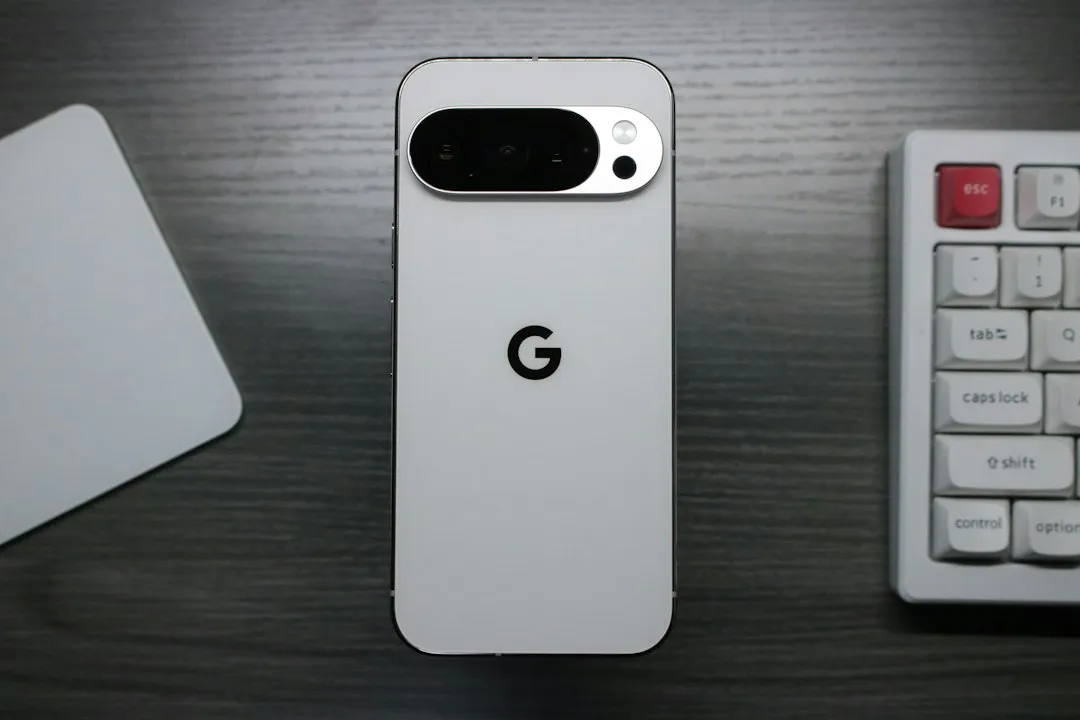
The feature that draws the most attention, and deserves the most scrutiny, is automatic crash detection. On Pixel 4a and later, in supported countries, the phone uses its accelerometer and microphone to sense a severe crash. If the driver doesn't respond to the prompt asking if they're okay, the phone automatically attempts to call emergency services and share the device's location (Android, earlier this year; The Verge, last year).
Pixel owners who want this active need to turn it on manually:
- Open the Personal Safety app and tap Features
- Select Set up under Car Crash Detection, then toggle it on
- Swipe down to Emergency Sharing, toggle it on, and add emergency contacts if prompted
(The Verge, last year)
This guide's automatic crash-detection instructions apply to supported Pixel phones, not Android generally. Drivers on other hardware shouldn't assume an equivalent safety net exists just because the phone runs Android.
How to use Android Emergency Sharing and live location after a crash
For a driver who can still respond, even briefly, manually triggering SOS or Emergency Sharing sends a live-tracking link, often through Google Maps, to selected contacts (Android Police, last year). Underneath that, Android's Emergency Location Service helps first responders hone in on the device's position (Android, earlier this year). Where it's supported, that same system shares the location with regional emergency responders who use it (Google Pixel Watch Help, last year).
Connectivity is the variable that breaks most of this, which is why Pixel's Satellite SOS matters on stretches of road with no signal. On supported Pixel phones, it can connect and share location with no Wi-Fi or mobile data available, though availability depends on the device, region, and conditions at the time (Android, earlier this year). Pixel Watches add another layer, and the details vary by model: LTE versions can call for help using their own cellular connection, while Wi-Fi-only models need an active Bluetooth link to a nearby phone to complete the call (Google Pixel Watch Help, last year).
None of this is a guarantee, and Google says as much. Pixel Watch's safety features run on radio signals, which can't promise a connection under every condition, and Emergency SOS may not be reliable, or even available, in every country (Google Pixel Watch Help, last year). Treat everything in this section as a strong backup, not a substitute for a working signal and a charged phone.
Right after a crash: what to do first
Everything above is setup. This is the sequence for the first minutes after impact, in order.
Get clear of immediate danger first, if it's possible to move. Then trigger Emergency SOS manually, or let a Pixel phone's Car Crash Detection prompt run its course if there's no response to it (Android, earlier this year). If the call connects to a dispatcher, state location and injuries directly rather than relying on the phone alone to explain the situation. Once that call is underway or has ended, use Emergency Sharing to alert personal contacts with a live-location link and battery status, so people beyond first responders know what's happening (Android, earlier this year).
The order matters because automation and manual action cover different situations. A driver who's conscious and mobile can trigger these tools deliberately; a driver who can't respond at all is precisely who Car Crash Detection and the countdown-based SOS trigger were built to cover (The Verge, last year).
Before your next drive
Emergency SOS, medical information, and Emergency Sharing only pay off if they're configured before a crash happens, not during one (Android, earlier this year; Android Police, last year). Automatic crash detection and satellite SOS remain Pixel advantages rather than something built into Android broadly, which is worth checking against the specific device in hand rather than assuming (The Verge, last year).
Run through a short list before the next drive: confirm Emergency SOS is configured and tested, check that medical information is current, review who's listed as an emergency contact, and, on a Pixel phone, verify Car Crash Detection and Emergency Sharing are both switched on. None of it takes more than a few minutes, and none of it helps if it's still sitting undone the next time something goes wrong.






Comments
Be the first, drop a comment!