



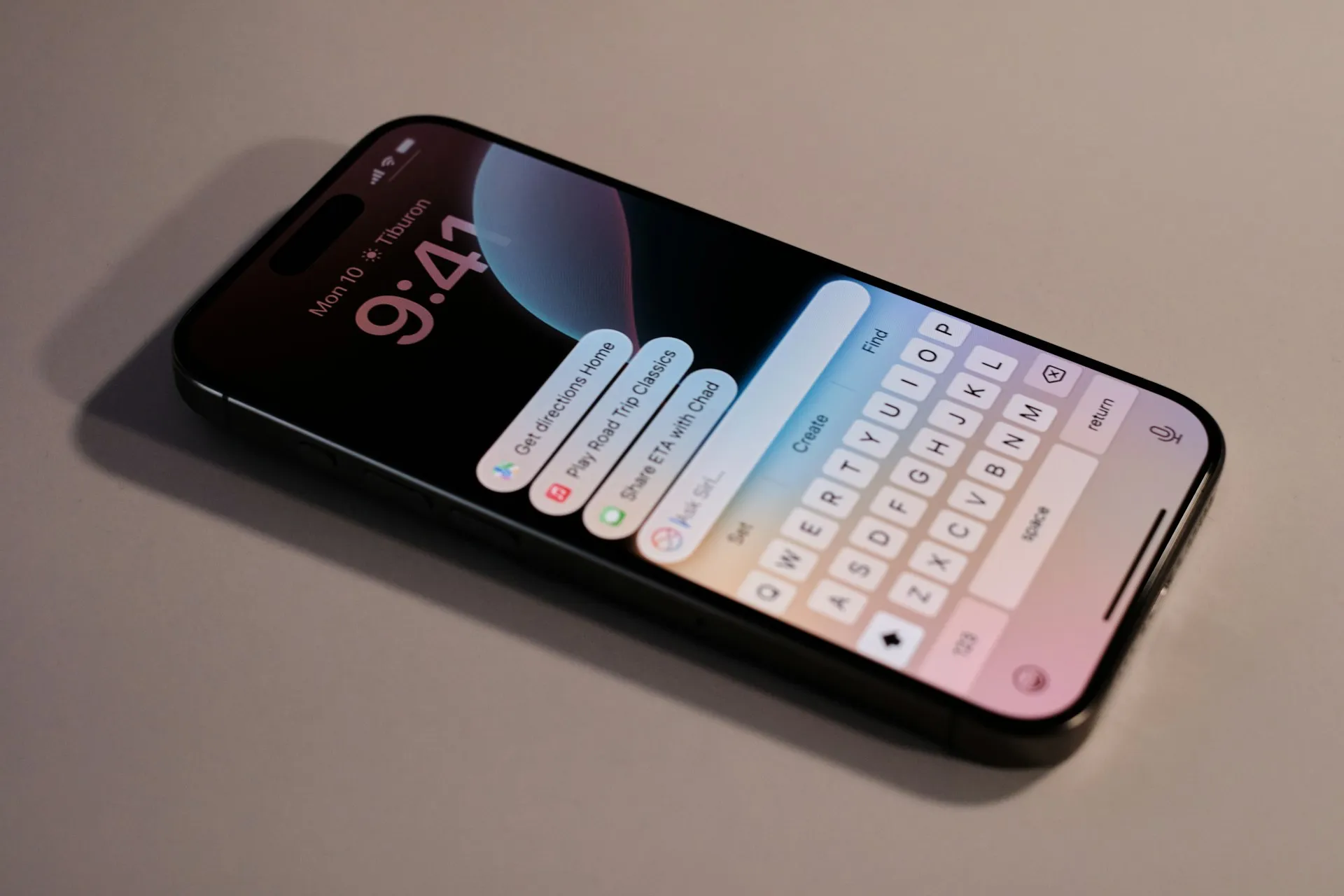
If you want to know how to set up always-on display (AOD) on your phone without killing your battery, the short answer is: strip it down. Clock, notification count, dark background. That's most of what you need, and it's the configuration that keeps power draw low enough that the feature earns its place.
The longer answer involves one statistic worth knowing up front. DXOMARK tested AOD continuously on flagship phones, and the iPhone 14 Pro dropped from 466 hours of standby to 122 with AOD always on. That's the worst case: unmanaged settings, feature running nonstop. The configuration in this guide targets something much closer to negligible. The difference between those two outcomes is almost entirely in which settings you leave on.
This guide walks through enabling and configuring always-on display on iPhone (14 Pro and later), Samsung Galaxy, and Google Pixel. Start with Step 1 to decide what belongs on your screen, then jump to the section for your device.
Before you start: AOD is available on OLED-based phones. On iPhone, you'll need a 14 Pro or later. Samsung Galaxy S and Z series devices support it with the full settings covered here. Pixel devices have AOD but almost no configuration options; see the Pixel section for what that means in practice.
Step 1: Decide what belongs on your always-on display
Before opening a settings menu, answer one question: what would make you put the phone back down without unlocking it?
That's the test. If a piece of information would stop you from picking up the phone, it earns a spot on the always-on display. If you'd only look at it after you'd already unlocked, it doesn't. AOD's job is to replace unlocks, not to become a miniature dashboard.
Here's a quick sorting guide:
Keep:
Time and date
Notification count or dot
Next calendar event (if you check it frequently while locked)
Turn off first:
Wallpaper
Music info and album art
Animated widgets or weather graphics
The physics behind this is simple. OLED pixels that are switched off draw no power. White text on a black background uses very little. A full wallpaper activates significantly more pixels, and is one of the most common reasons AOD battery drain looks worse than expected. Modern OLED screens can run at 1Hz in AOD mode, 60 to 120 times slower than an active display, which is plenty fast for anything that updates once per minute, like a clock. Staying within that class of content is where power use stays low.
There's also a compounding effect worth knowing: every time AOD gives you the information you needed, that's a full-brightness screen wake-up that didn't happen. A well-configured AOD may cover its own power cost just by eliminating those activations.
Step 2: Always-on display settings that matter most
AOD setup differs meaningfully across platforms. Work through the section for your phone.
iPhone (14 Pro and later)
Go to Settings > Display & Brightness > Always On Display and toggle it on.
Turn off Show Wallpaper. This is the highest-impact change available. The wallpaper lights substantially more pixels than a plain dark background. After disabling it, AOD will show your clock and notifications against a dark screen.
Show Notifications controls whether notifications appear at all on the AOD screen. Leave it on if you want to see incoming alerts without a Face ID prompt. Turn it off for a cleaner display or if you prefer no lock-screen previews.
Show Previews is a separate setting that controls how much notification content is visible while the phone is locked. For full message text to appear without unlocking, go to Settings > Notifications > Show Previews and select Always. This isn't technically an AOD setting, but it extends the same principle: the more useful information visible while locked, the fewer reasons to pick up the phone.
iPhone has no native schedule toggle for AOD. To limit it to certain hours, set up a Focus filter or a Shortcuts automation to disable and re-enable it on a schedule. For situations where a schedule isn't needed, the phone handles the easy cases automatically: AOD suppresses itself when the phone is face-down or in a pocket, using its proximity and orientation sensors.
Watch for this: The combination of Show Wallpaper enabled and no schedule is responsible for most iPhone AOD battery complaints. Disabling the wallpaper alone usually resolves it.
Samsung Galaxy
Open Settings > Lock screen and AOD > Always On Display and toggle it on.
Tap When to show and pick your preferred behavior. For most users, Show for new notifications is the most battery-friendly option, because the screen stays dark until something worth reading arrives. Use Show as scheduled to limit AOD to specific hours. Show always makes sense when the phone is reliably plugged in or charging throughout the day, but skip it otherwise.
Turn off Show music information. This prevents album art and playback controls from activating the screen every time audio is playing. It's an easy source of unnecessary pixel activation that most users don't notice until they're looking for battery culprits.
In the AOD display settings, disable the wallpaper option (labeled within the AOD customization screen; exact wording may vary slightly by One UI version). Choose a minimal clock face with a dark background and no more than one widget.
Samsung's AOD automatically turns off when the phone is face-down, in a pocket, in Battery Saver mode, or connected to Android Auto. This is built-in behavior that requires no configuration.
Watch for this: Show always without charging access is the setting that moves results toward the worst-case lab numbers. If the battery looks noticeably worse after enabling AOD, check this first.
Google Pixel
Pixel devices currently don't include settings to adjust always-on display behavior. There's no scheduling option, no notification-triggered activation, nothing comparable to what Samsung offers. It's on or it's off.
If you enable AOD on a Pixel, keep screen brightness on auto to limit display power. Monitor battery for two to three days and disable AOD if the drain is noticeable. The feature may be worth enabling when Google adds configuration controls; right now, for battery-conscious users, leaving it off is the more defensible default.
Step 3: Troubleshooting battery drain after setup
If the end-of-day battery percentage looks worse than it did before enabling AOD, work through this short decision tree before turning the feature off entirely.
Battery worse on iPhone?
Check Show Wallpaper first. If it's on, turn it off. That single change resolves the majority of iPhone AOD battery complaints.
If drain persists, set up a Focus or Shortcuts schedule to disable AOD during sleeping hours.
Battery worse on Samsung?
Check When to show. If it's set to Show always, switch it to Show for new notifications.
Confirm Show music information is off.
Verify the wallpaper is disabled in AOD display settings.
Battery worse on Pixel?
Disable AOD. There are no intermediate adjustments available.
For reference, here are the target baselines each configuration should hit:
iPhone: AOD on, Show Wallpaper off, Show Notifications on, notification previews set to Always, scheduling via Focus or Shortcuts if needed.
Samsung: AOD on, When to show set to "Show for new notifications" or a schedule, Show music information off, wallpaper disabled, minimal clock face with one widget.
Pixel: AOD on, default settings, monitor battery for two to three days.
AOD drain is negligible on modern phones when adaptive behaviors are active, and the display stays minimal. That holds for these configurations. The steep standby losses from the DXOMARK lab testing reflect continuous, unmanaged use with default settings intact — a different scenario entirely.
What to watch after the first few days
One thing worth knowing before you call the configuration done: burn-in is a real consideration with always-on displays. Static content in fixed positions causes uneven OLED aging over time, and AOD is a known contributing factor. Modern panels handle this far better than early OLEDs, and a minimal dark-background setup is already among the least burn-in-prone configurations available. Keep brightness on auto, avoid bright static elements, and the risk is low within a normal replacement cycle.
Once the baseline configuration is running well, add items one at a time. A calendar widget that shows the next event might eliminate another category of unlock entirely. Add it, monitor the battery for three days, then decide whether to keep it. That's the most reliable way to know what each addition actually costs.


Comments
Be the first, drop a comment!