



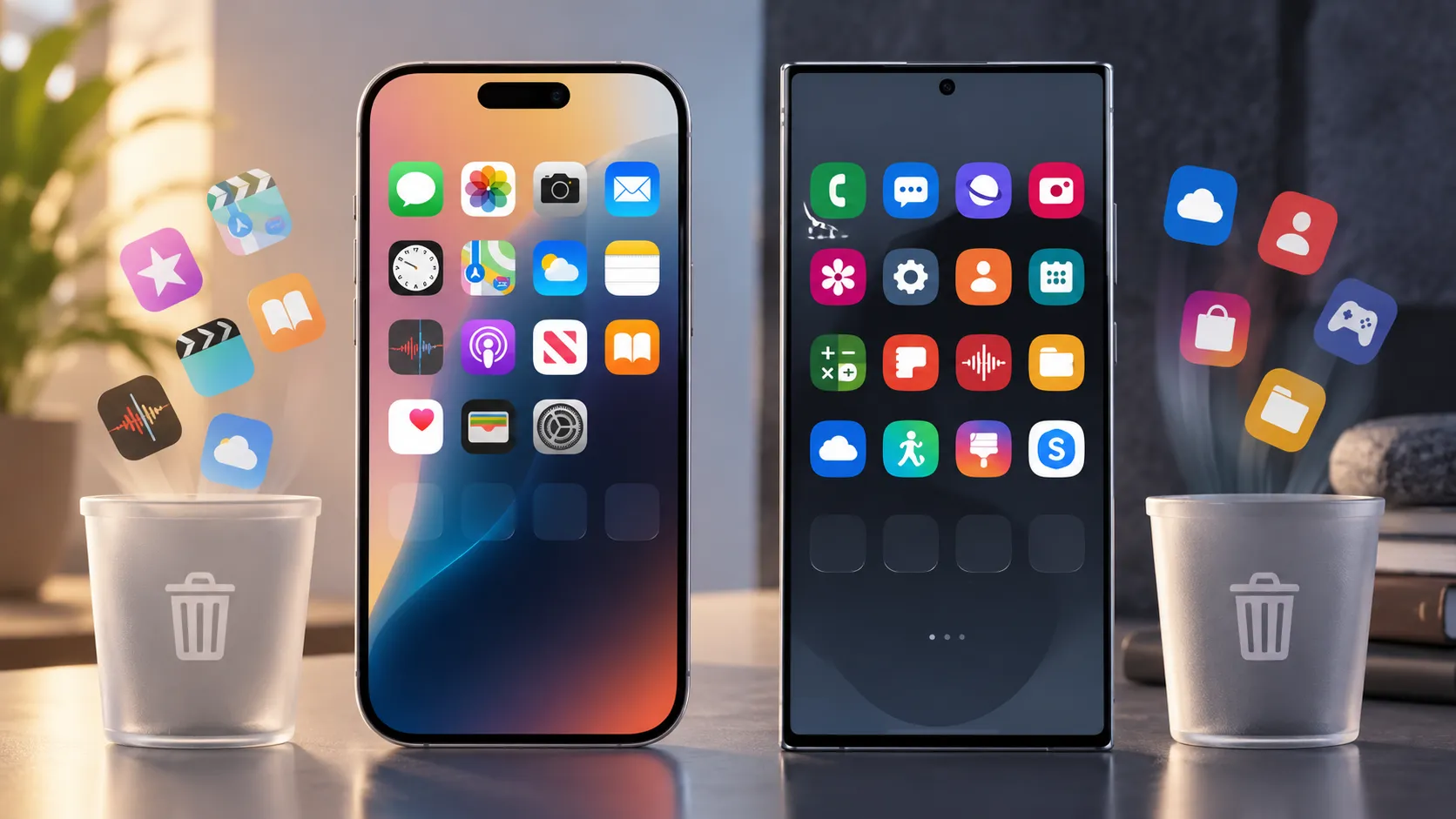
The iPhone vs Samsung Galaxy bloatware debate usually turns into a scoreboard argument: which phone maker crams in more junk you'll never open. Apple's own support documentation and Samsung's own support page tell a more useful story than any scoreboard could.
Apple's current guidance confirms the deletion mechanism and names more than two dozen built-in apps that qualify, all removed with the same touch-and-hold gesture used for downloaded apps. Samsung's Galaxy support page confirms a similar option exists on Android, but with a catch: not every preinstalled app qualifies for Uninstall, and not every app that resists uninstalling can be disabled instead.
With iOS 14 or later, iPadOS, and watchOS 9.4 or later, Apple confirms users can delete select built-in apps, but it also states plainly that some built-in Apple apps can't be deleted at all, without naming which ones. Samsung treats Uninstall and Disable as two separate actions from the Apps screen, and its support page confirms neither option is guaranteed for every preinstalled app.
This is a comparison of iPhone and Samsung Galaxy specifically, using each company's own support documentation, not a ranking of Android phones with less bloatware overall. Neither support page reviewed here quantifies storage use, background activity, or the number of carrier-installed apps, so that broader question can't be answered from official sources alone.
What can be answered is narrower and more practical: which platform tells you in advance what you're allowed to remove, and which one leaves you checking app by app on your own device. Pixel, Motorola, OnePlus, and carrier-branded Android phones sit outside this comparison; their public documentation wasn't reviewed here, so don't extend either brand's findings to them.
Delete, disable, or hide: the three outcomes you need to tell apart
Before comparing platforms, it helps to know what each action actually does. On iPhone, "Remove from Home Screen" keeps an app installed in the App Library, while "Delete App" removes it from the device entirely and deletes related app data. Apple's Home Screen and App Library guidance confirms those are different outcomes even though both start with the same gesture, so it's worth checking which button actually appears before assuming an app is gone.
On Galaxy, Samsung separates Uninstall, which removes the app, from Disable, which keeps the app installed but disables it. Its support page confirms some preloaded apps can't be uninstalled at all, and separately that not every preinstalled app can be disabled either, but it never states outright that any specific app resists both actions.
Samsung's documentation confirms the Disable option exists; it doesn't say what disabling actually does to storage, battery, or background processes. Don't assume disabling an app meaningfully frees up space or stops background activity on a Galaxy phone, since that claim isn't supported by the source.
Apple also lets users route all future app downloads to "App Library Only" instead of the Home Screen. That's launcher tidying, not deletion, and it removes no software from the device.
The breakdown below shows what each source actually confirms and what you'll still need to verify on your own phone.
Delete or uninstall: On iPhone, touch and hold the app, then tap Delete App, or Remove App followed by Delete App. On Galaxy, touch and hold the app on the Apps screen and tap Uninstall. Apple names specific removable apps and documents consequences for some, while Samsung confirms Uninstall is available for apps that qualify. You'll still need to check whether Delete App or Uninstall actually appears for the specific app.
Disable without removing: iPhone does not offer a separate Disable option. On Galaxy, touch and hold the app on the Apps screen and tap Disable when that option is available. Samsung confirms Disable exists for some apps that can't be fully uninstalled, but it doesn't guarantee the option will appear for every app or explain exactly what disabling stops.
Apps that can't be removed: Apple states that some built-in apps can't be deleted, without naming them. Samsung states that some preloaded apps can't be uninstalled and separately that not all can be disabled. Neither company publishes a complete app-by-app list, so you'll need to check the options available on the device itself.
Restoring a removed app: On iPhone, search for the exact app name in the App Store and tap Redownload. Apple confirms that reinstalling a built-in app restores affected functionality. Samsung documents reinstalling apps from the Play Store or Galaxy Store, but its cited support page does not provide a restoration path for every preloaded system app.
iPhone: a named list of removable apps, with real trade-offs for a few
Apple's current built-in-app support page names the apps that can be deleted from an iPhone or iPad running iOS 14 or later or iPadOS: Activity, Apple Books, Apple TV, Calculator, Calendar, Clock, Compass, Contacts, FaceTime, Files, Find My, Freeform, Health, Home, iTunes Store, Mail, Maps, Measure, Music, News, Notes, Podcasts, Reminders, Shortcuts, Stocks, Tips, Translate, TV, Voice Memos, Wallet, Watch, and Weather.
App lineups can shift between iOS versions and regions, so treat the list as a reference point to check against your current iPhone rather than assuming every device presents identical options.
A handful of these apps carry documented consequences worth knowing before you tap Delete. Removing Podcasts, Apple Books, Maps, or Music takes that app out of CarPlay. Deleting Stocks or Weather removes that information from Notification Center and from Complications on Apple Watch, and deleting Calculator removes it from Control Center.
A few apps interact with paired hardware in ways that are easy to miss. Deleting Health or the Watch app from an iPhone paired with Apple Watch triggers an alert requiring you to unpair the Watch first, and deleting Music can block audio playback through some car stereos and receivers.
Apple Watch owners should also know the relationship runs one direction. Deleting a built-in app from an iPhone paired with Apple Watch also deletes that app from the Watch, but deleting a built-in app directly from the Watch, such as Contacts, doesn't touch the iPhone version.
That's an easy assumption to get backward if you're cleaning up a Watch face and expect the change to carry over to the phone.
Two specific caveats are worth flagging on their own. Deleting Contacts leaves your contact information accessible through the Phone app, and deleting Find My doesn't break existing location-sharing relationships, though it does make previously paired AirTags and other Find My network accessories invisible to their owner from that specific device.
For every named app besides these documented cases, the absence of a stated consequence should be read as "no consequence documented," not "confirmed safe."
The gap that remains is what Apple doesn't publish: a list of the built-in apps that can't be deleted at all. Apple states plainly that some built-in apps fall into that category without naming them. Apple also documents additional removable apps for users in the European Union and Japan, so removal options can vary by region.
Can you delete pre-installed apps on Samsung Galaxy? What Samsung confirms
Samsung's support page confirms two separate controls exist for managing preloaded apps: Uninstall, which removes an app that qualifies, and Disable, which keeps an app installed but disables it for apps that can't be completely removed.
The same page also states plainly that not every preinstalled app can be disabled either. That's three separate facts, not proof that Samsung maintains a specific list of apps immune to both actions, though the wording leaves that possibility open without confirming it.
The instructions themselves are straightforward. From a Home screen, swipe up or down to reach the Apps screen, touch and hold the app you want to remove, and tap Uninstall if that's the goal. For an app that can't be uninstalled, touch and hold it and tap Disable instead.
Samsung's documentation doesn't guarantee that Disable will appear just because Uninstall doesn't, so the safest approach is to check which button actually shows up for that specific app rather than assuming one option always backstops the other.
What Samsung's page doesn't provide is the inventory itself. It names the available actions, not which Galaxy apps fall under Uninstall, Disable, or neither.
The cited page does not map removal status by model, One UI version, or carrier variant, so this comparison can't establish whether the same app behaves identically across Galaxy devices. The only confirmed way to know a given app's status on a given Galaxy phone is to check it directly: open the Apps screen, touch and hold the app, and see whether Uninstall or Disable shows up.
This is also where the removable pre-installed apps by phone brand question gets murkier outside of Apple and Samsung. Pixel, Motorola, OnePlus, and other Android brands don't have equivalent public documentation examined in this comparison, so their policies remain unverified rather than assumed similar to Samsung's.
A Galaxy-specific answer doesn't transfer to a Pixel or a OnePlus phone just because both run Android.
Which platform tells you more before you tap delete
Apple publishes a named list of deletable built-in apps with documented consequences attached to a handful of them. Samsung confirms Uninstall and Disable exist as separate controls but leaves the app-by-app breakdown to whoever owns the phone.
Neither company's documentation counts how much storage its preloaded apps use, how many run in the background, or how many a carrier adds on top, so none of this settles which brand ships less software overall.
Neither platform allows unrestricted removal, either. Apple says some built-in apps can't be deleted without naming them, and Samsung's own wording confirms some Galaxy preloads can't be uninstalled and some can't be disabled, without saying whether those groups overlap.
Choose based on how you want to manage bloatware, not brand loyalty
Choose iPhone if you'd rather see a documented list and known consequences, like losing CarPlay access or Watch Complications, before you delete anything. The trade-offs are named in advance, even though the full list of undeletable apps isn't.
Consider Galaxy if you're comfortable inspecting your own device instead of relying on a published inventory. Samsung gives you an Uninstall or Disable option to test app by app, but it won't tell you in advance which button will show up for a given preload.
Don't assume either choice means less bloatware. Nothing in Apple's or Samsung's support documentation measures app count, storage footprint, battery drain, or background activity, so this comparison can declare a winner on transparency, not on how much junk actually sits on the phone.
What to check before you start deleting anything
If you're on an iPhone, check whether an app shows Delete App rather than just Remove from Home Screen before removing it, and review the CarPlay, Apple Watch, and Find My caveats above before touching anything tied to those systems.
Redownloading a built-in app from the App Store by its exact name restores affected functionality if you change your mind.
If you're shopping for or already own a Galaxy phone, don't rely on this article or any general list of Samsung bloatware. Open the Apps screen on your specific device and check each preload individually for an Uninstall or Disable option, since Samsung's own support page never confirms the same app behaves identically across every model or carrier variant.
And don't extend either company's findings to Pixel, Motorola, OnePlus, or other Android brands until those manufacturers publish comparably specific support documentation of their own.







Comments
Be the first, drop a comment!